
Blog
How to Set Up the PS5 for the Best Gaming Experience?

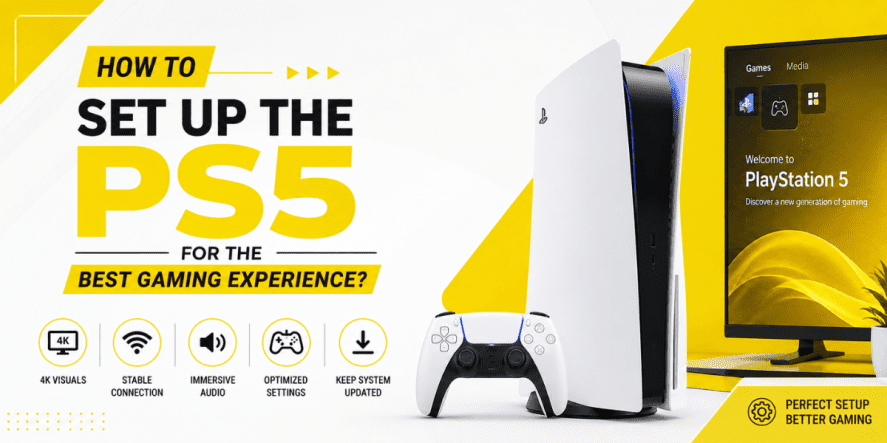
If you’ve just unboxed your console or you’re looking to improve your current gaming setup, taking a few extra minutes to configure your PlayStation 5 correctly can make a noticeable difference. From display quality and controller settings to network performance and storage management, every adjustment contributes to a smoother, more enjoyable gaming experience.
This guide walks you through everything you need to know. If you’ve ever wondered how to set up PS5 correctly or asked yourself, how do I set up my PS5, this guide covers every important step in a simple, practical way.
Getting Started: What You Need Before Setting Up Your PS5
Before turning on your console, make sure you have everything ready. A proper setup starts with using the right equipment and placing your console in a well-ventilated location. If you’re thinking about how to set up your PS5, follow these steps to ensure a smooth setup.
You’ll need:
- A PlayStation 5 console
- HDMI cable (preferably the one included with the console)
- Power cable
- DualSense wireless controller
- Stable internet connection
- Compatible TV or gaming monitor
- PlayStation Network account
Place the PS5 on a flat, stable surface with enough space around the vents to allow proper airflow. Avoid placing it inside enclosed cabinets or directly against walls where ventilation may be restricted.
How to Connect Your PS5 Properly
Once everything is ready, connecting the console is straightforward.
Connect the Hardware
Follow these steps:
- Connect the HDMI cable to your TV and PS5.
- Plug in the power cable.
- Turn on your television.
- Press the power button on the console.
- Connect the controller using the supplied USB cable.
- Follow the on-screen setup instructions.
During the initial startup, you’ll select your language, region, internet connection, and PlayStation Network account.
Configure the Best PS5 Display Settings
After the initial setup, spend a few minutes adjusting your PS5 display settings. Proper display configuration allows games to look sharper while improving overall responsiveness.
Adjust Resolution and Refresh Rate
Most modern televisions automatically detect supported resolutions, but it’s still worth checking.
Recommended settings include:
- Use the highest supported resolution.
- Enable 120Hz output if your TV supports it.
- Enable HDR if your TV supports HDR10 and delivers good HDR brightness and color performance. Otherwise, SDR may produce a better image.
- Set RGB Range to Automatic.
- Enable VRR (Variable Refresh Rate) if supported.
These settings help produce the best PS5 picture settings for supported games without requiring constant manual adjustments.
Optimize PS5 Performance for Gaming
Graphics are only one part of the experience. System settings also affect loading times, responsiveness, and gameplay stability. If you’re wondering how to optimize PS5, start with these recommendations.
Enable Game Presets
Navigate to Settings > Saved Data and Game/App Settings.
Here you can configure:
- Performance Mode for higher frame rates
- Resolution Mode for maximum visual quality
- Preferred difficulty settings
- Subtitle preferences
- Camera options
Performance Mode is generally recommended for competitive games, while Resolution Mode is well-suited to cinematic single-player titles.
Keep Your Console Updated
Sony regularly releases firmware updates that improve security, performance, compatibility, and system stability. Enable automatic updates so your console installs new software whenever available.
Improve Your Internet Connection
Online gaming depends heavily on connection quality. Even powerful hardware cannot compensate for an unstable network.
For the best experience:
- Use a wired Ethernet connection whenever possible.
- Place your router in an open location.
- Use the 5GHz Wi-Fi band if Ethernet isn’t available.
- Avoid downloading large files while gaming.
- Restart your router if you experience connection issues.
A reliable connection improves multiplayer performance, reduces lag, and speeds up game downloads.
Customize Your Audio Settings
Immersive sound is just as important as visual quality. The PS5 supports Tempest 3D Audio, providing more accurate directional sound in supported games.
You can optimize audio by:
- Selecting the correct audio output device.
- Adjusting microphone sensitivity.
- Calibrating 3D Audio for headphones.
- Choosing the appropriate speaker setup if using external speakers.
High-quality headphones often provide the most immersive gaming experience, especially during competitive online matches.
How to Hook Up a New PS5 Controller
If you’ve bought an additional DualSense controller, pairing it takes just a minute. You can also pair a second controller.
If you’re searching for how to hook up a new PS5 controller, simply:
- Turn on the PS5.
- Connect the new controller using a USB cable.
- Press the PlayStation button.
- Wait for the pairing to complete.
- Disconnect the cable if you want to use it wirelessly.
The controller will now automatically reconnect whenever you turn it on.
How to Set Up 2 Controllers on PS5
Playing local multiplayer is easy once both controllers are paired.
If you’re wondering how to set up 2 controllers on PS5, follow these steps:
- Pair both controllers individually.
- Press the PlayStation button on the second controller.
- Select a different user account or Guest profile.
- Launch a game that supports local multiplayer.
Each controller operates independently, allowing split-screen or couch co-op gaming without additional configuration.
Manage Storage Efficiently
Game sizes continue to grow, making storage management increasingly important. To maintain good system performance:
- Delete games you no longer play.
- Move compatible titles to external storage.
- Sony doesn’t specify a required amount, but keeping at least 10–20% of internal storage free helps with updates and system performance.
- Regularly review screenshots and video captures.
Installing a PCIe Gen4 NVMe M.2 SSD meeting Sony’s specifications is also an excellent option for players with large game libraries.
Customize Power Saving Features
Power settings help balance convenience with energy efficiency.
Recommended options include:
- Enable Rest Mode.
- Allow automatic downloads during Rest Mode.
- Charge controllers while resting.
- Disable unnecessary background features.
Rest Mode allows updates and downloads to complete without fully powering the console.
Enhance Your Gaming Environment
Your gaming space also affects comfort during long sessions.
Consider improving your setup by:
- Positioning your display at eye level.
- Using comfortable seating.
- Reducing glare from windows.
- Keeping cables organized.
- Maintaining good room ventilation.
These adjustments help create a more enjoyable gaming experience over extended play sessions.
Buying Your PS5 Accessories in Pakistan
Many gamers also look for trusted retailers when purchasing accessories or upgrading their gaming setup.
If you’re researching the price of the PS5 in Pakistan, make sure you compare prices from reliable sellers that offer genuine consoles and official accessories. Golden Camera is a trusted option for gamers looking for authentic PlayStation products, controllers, headsets, storage upgrades, and other gaming accessories backed by dependable customer service.
Common Setup Mistakes to Avoid
Even experienced gamers occasionally overlook simple configuration steps.
Avoid these common mistakes:
- Skipping system updates.
- Using poor-quality HDMI cables.
- Ignoring HDR calibration.
- Filling internal storage completely.
- Blocking console ventilation.
- Using unstable Wi-Fi connections.
- Forgetting to back up saved data.
Correcting these small issues can significantly improve long-term performance.
FAQs
1. How do I connect PS5 to TV for the first time?
Connect the supplied HDMI cable between the PS5 and your TV, plug in the power cable, switch the TV to the correct HDMI input, and power on the console. Connect the DualSense controller with the USB cable and follow the on-screen setup instructions.
2. Which internet connection is best for smooth online gaming?
A wired Ethernet connection provides the most stable performance with lower latency. If Ethernet is unavailable, use a strong 5GHz Wi-Fi connection positioned close to your router.
3. How much storage should I keep free on PS5?
It’s recommended to keep a reasonable amount of free storage available so the console can install game updates, system software, and temporary files without performance issues.
4. What is the best audio setup for PS5 gaming?
High-quality headphones that support Tempest 3D Audio generally provide the most immersive experience. If using speakers, configure the correct audio output and speaker layout in the system settings.
5. How to properly update PS5 system software?
Go to Settings > System > System Software > System Software Update and Settings, then check for updates. Enabling automatic updates ensures your console receives the latest improvements whenever they become available.
Final Thoughts
Setting up your PlayStation 5 correctly goes beyond simply connecting a few cables. Finetuned your display, network, storage, controller, and audio settings creates a smoother, more responsive gaming experience while helping your console perform at its best over time. By following this PS5 setup guide, you’ll be ready to enjoy everything your PS5 has to offer with confidence.
If you’re also shopping for genuine PlayStation accessories or gaming equipment, Golden Camera remains a dependable camera shop in Pakistan that offers authentic gaming products alongside its extensive range of electronics, making it a convenient destination for upgrading your complete gaming setup.