
Blog
Why Do Wireless Mics Disconnect? Dropouts & Fixes

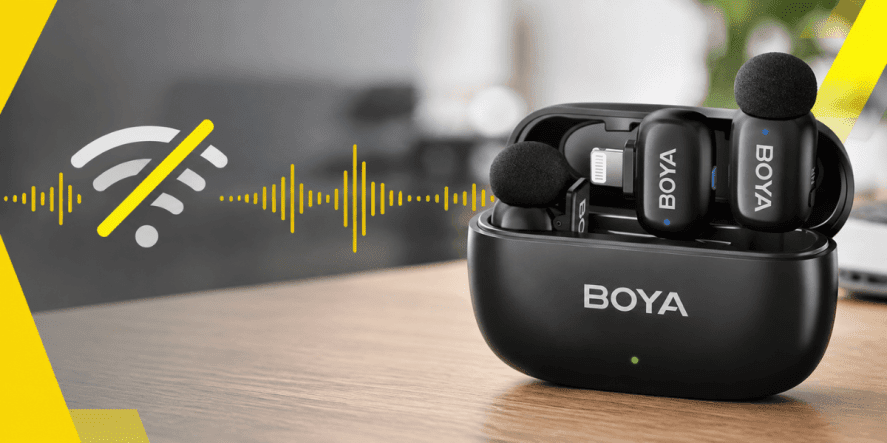
A wireless microphone can deliver crisp, clear audio one moment and leave an awkward gap the next. The frustrating part is that the recording may sound perfectly fine right up until the signal cuts out. What causes these sudden interruptions, and why do they happen even with reliable equipment? Understanding wireless microphone dropouts starts with a closer look at the factors that can disrupt a seemingly stable connection.
Let’s walk through what really happens and how you can fix it.
What Does a Wireless Mic Disconnect Actually Mean?
Why do wireless mics disconnect in the first place? Usually, the cause is radio interference, a blocked signal path, low battery power, or a wrong setting, not a hardware fault. Cutting out has no single cause, so it helps to identify the problem layer before you change anything.
- A wireless setup has four layers where things can go wrong.
- The first is the radio link between the transmitter and receiver.
- The second is audio routing on your phone, camera, or computer.
- The third is the connection between the receiver and your device.
- The fourth is the recording app.
A mic can appear disconnected even when the radio link is healthy, which is why identifying the layer matters.
Troubleshooting Wireless Mic Disconnections: Common Causes
When you ask, “Why does my wireless mic keep disconnecting?” The answer is usually one of six causes. Each one has clear signs, so let’s go through them one by one.
1. Radio Interference in Busy Spaces
Most consumer systems use the 2.4 GHz band, which Wi-Fi routers, Bluetooth devices, and other wireless microphones also use. RF interference commonly causes intermittent audio dropouts in 2.4 GHz wireless systems. Professional systems also face local interference, including TV stations, motors, and LED lighting. If you record in a wedding hall, a shared office, or a busy market, check this cause first.
2. Blocked Signal Paths and Body Blocking
Your body can absorb high-frequency signals, so the audio may cut out when you turn away from the receiver. This is called body blocking, and repositioning the transmitter or improving the line of sight usually fixes it. Thick walls, metal structures, and bags can also weaken the link, so keep the receiver in the open.
3. Low or Unstable Battery Power
A weak battery can reduce transmission stability long before a device shuts off. If your wireless mic keeps cutting out near the end of a long session, check the charge first, because both the transmitter and receiver need enough power. Start every recording with fully charged units and carry spares for long shoots to avoid most of these surprises.
4. Reflections and Antenna Orientation
Signals bounce off metal objects and walls. This means reflections can reach the receiver out of phase and cancel part of the signal. Antenna orientation matters too. Poor orientation can weaken the received signal, especially when transmitter and receiver antennas aren’t positioned properly. Keeping the receiver in the same room, raised, and unobstructed reduces both problems.
5. Too Much Distance Between Devices
Every system has a working range, and indoor walls and objects shorten it. A stated range applies best in open space, while reflective indoor surfaces reduce it considerably. Staying near the receiver and testing your real limit in the actual venue gives you a dependable working range.
6. Pairing, Firmware, and Input Settings
Sometimes the radio link is fine, but the pairing is incomplete, the firmware is outdated, or the wrong input is selected in your app. A restart, a fresh pairing, and a firmware update often clear these issues. On Windows computers, USB power saving can also switch off a receiver connected through a USB port.
If your current setup keeps letting you down, Golden Camera offers the RODE Wireless GO Gen 3 for creators in Pakistan who want a compact wireless system for interviews, vlogs, and events. Explore its recording features and connectivity options to find out if it suits your audio workflow, and upgrade your setup with equipment designed for flexible content production.
Common Symptoms and What They Usually Mean
Different symptoms point to different layers of the setup, so a quick look at what you hear can save you a lot of guessing. The table below sums up the most common patterns and the first fix worth trying.
| What You Notice | What It Usually Means | First Fix To Try |
| Signal indicator drops or shows no connection | The radio link between transmitter and receiver is lost | Reposition the receiver, reduce interference, and check batteries |
| Signal stays connected, but nothing is recorded | Wrong input selection or an audio routing issue | Select the wireless receiver as the input in your app or device |
| Receiver is missing in the device list | A USB or adapter communication problem | Reconnect it, try another port, and turn off USB power saving |
| Audio cuts out when you turn your body | Body blocking of the signal path | Move the transmitter or improve the line of sight |
| Mic works in one app but not another | An app permission or input setting issue | Review the app’s audio settings and permissions |
How to Prevent Wireless Mic Dropouts Before You Record
Knowing how to prevent wireless mic dropouts saves you from stressful retakes. Preparation beats emergency fixes, and the habits below suit solo creators and small crews alike.
Choose the Right Frequency Band
DJI explains that 2.4 GHz systems are easy to set up and usually license-free, but they are prone to Wi-Fi congestion. Professional UHF systems can help in complex RF environments because many models offer more frequency-planning and coordination options. Actual performance depends on the system, frequency allocation, antenna setup, venue, and local regulations. The right choice depends on where you usually record.
Working With 2.4 GHz Systems
These systems suit solo creators because they’re easy to set up. Move away from busy Wi-Fi equipment where practical, reduce unnecessary wireless activity, and use automatic frequency management when your system supports it.
Working with UHF Systems
UHF works well for longer sessions in busy venues. If your system supports frequency scanning, use it to identify a suitable channel. Some systems can select a channel automatically, while others require manual selection or coordination.
Set Up Your Receiver and Batteries Properly
Place the receiver with a clear view of the transmitter, away from bags and metal surfaces, and raise it in crowded spaces. Fully charge everything before you begin, and carry spare batteries for long days. If your system supports it, record a backup track so one dropout does not ruin the whole take.
Test Before Every Recording
DJI recommends a quick test recording before every session. Walk around, vary your volume, and listen back. Doing this in the actual venue exposes weak spots while you can still fix them, and it protects the entire shoot.
How to Troubleshoot a Dropout: Step by Step
When dropouts still happen, work by elimination instead of changing everything at once. Shure’s engineers suggest turning off other wireless systems and testing the problem microphone alone. Then watch the receiver’s signal indicator during a dropout. If the RF level drops, the cause is the radio signal; if it doesn’t, check the audio path, such as a faulty lavalier mic or cable.
Next, scan for another suitable frequency. If the system becomes stable after changing frequency, that suggests the original channel may have been affected by local RF interference. Try the transmitter with a different receiver to find out which unit is at fault. Testing in another location also shows if the venue itself is the source of the problem.
FAQs
1. What can interfere with the connection between a transmitter and receiver?
Wi-Fi routers, Bluetooth devices, other wireless microphones, thick walls, and metal structures can all weaken the link, according to DJI. Local sources such as TV stations, motors, and LED lighting can interfere too.
2. Does distance affect wireless microphone performance?
Yes. Every system has a working range, and indoor walls and objects reduce it. Staying reasonably close to the receiver with a clear line of sight gives the most stable signal, and a walk-around test in the venue reveals your real limit.
3. Can low battery levels cause audio interruptions?
Yes. Low battery power can contribute to dropouts or shutdowns, depending on the wireless system.
4. How can you improve reliability during an important recording?
Choose a clean frequency, keep a clear line of sight, start with full batteries, and run a test recording in the venue. A backup recording track adds extra protection if your system supports one.
5. What should you check when audio suddenly stops during filming?
Check the battery level and the receiver’s signal indicator first. Then confirm the correct input is selected and look at the pairing status. Moving closer to the receiver rules out distance and body blocking as causes. Watch the receiver’s RF indicator while the dropout happens.
Final Thoughts
Wireless mic disconnects feel unpredictable, yet they follow clear patterns. Interference, blocked paths, weak batteries, and settings problems explain most cases, and each one has a practical fix. When you sort the symptom into the right layer, test in the real venue, and prepare your gear before recording, you protect both your audio and your peace of mind. Stay patient with the process, because every dropout you solve makes your next shoot smoother.
A stable connection starts with a wireless microphone that suits your recording environment and device. Golden Camera stocks the BOYA Mini 2 wireless microphone, a lightweight option with AI noise cancellation and a safety track to help manage background noise and sudden audio peaks. Explore our range and give your next recording a more dependable audio setup.